Here’s how to download Twitch clips: Twitch’s clip creation and sharing guide lets you download landscape or portrait versions of clips of your channel and clips you created through the Clips Manager in the Creator Dashboard. Channel owners can delete clips of their channel at any time, so save a copy you want to keep. For any other public clip, paste its link into a free web downloader. We checked these steps against the official pages on November 20, 2026.
On desktop:
- Go to Creator Dashboard > Content > Clips.
- Open Clips of My Channel or Clips I've Created.
- Download the landscape or portrait version of the clip.
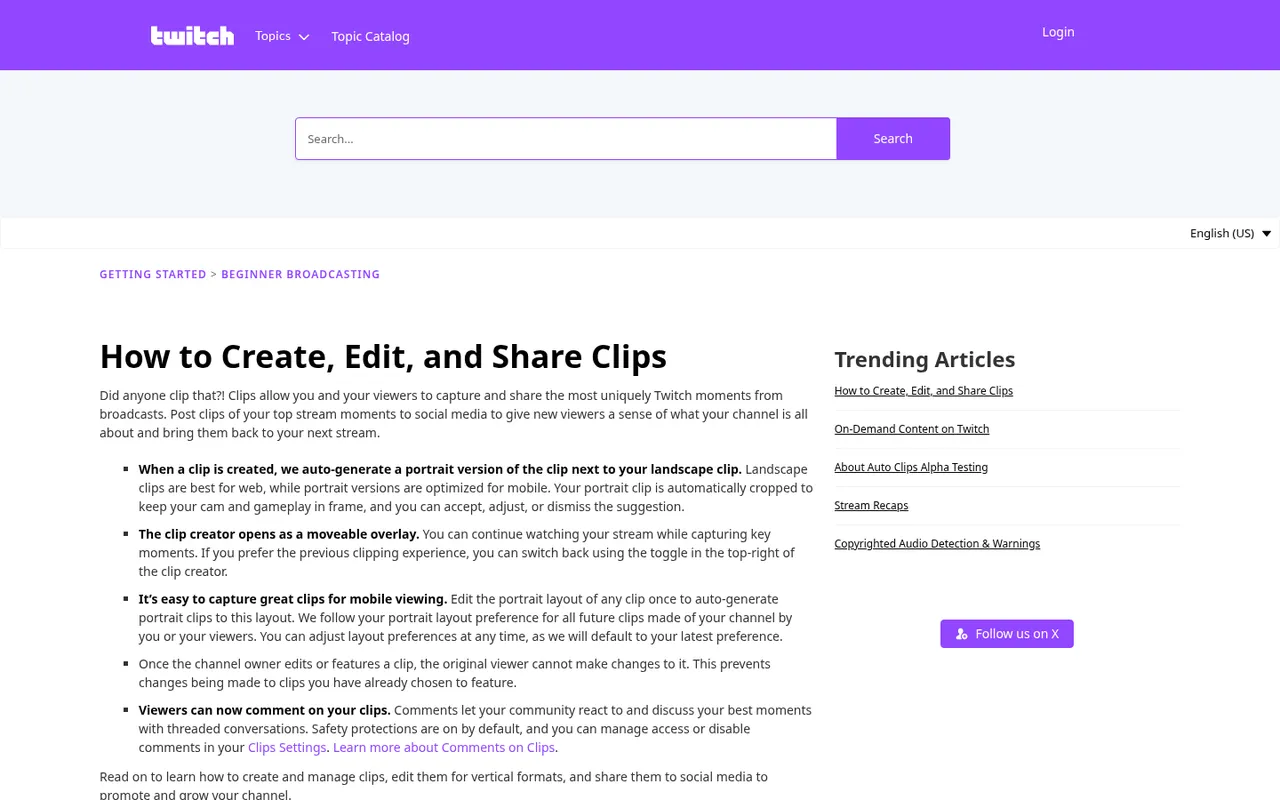
Top of the How to Create, Edit, and Share Clips help article
Summary
- Twitch lets you download your own clips from the Clips Manager. On desktop, go to Creator Dashboard > Content > Clips, open Clips of My Channel or Clips I've Created, and download the 16:9 landscape or 9:16 portrait version.
- Any public Twitch clip can be saved as MP4 with a web downloader. Paste the clip link into AnyVidSaver's free downloader and pick a quality such as 1080p or 720p. Live streams must be clipped first, up to 60 seconds.
- Phones use the same browser flow with different save spots. On iPhone, tap Share > Save Video to add it to Photos; the file also sits in Files > Downloads. On Android, it lands in Internal storage > Download.
- Kick clips download the same way, up to three minutes long. Copy the Kick clip link, paste it into the Kick clip downloader and save the MP4 in the best original quality. Only public links work.
- Free Discord uploads cap at 20 MB, so link or compress. Pasting the clip URL shares a preview without attaching the file. Otherwise compress to 20 MB, or 50 MB for Nitro Basic; Nitro allows up to 1 GB.
Download any Twitch clip in a browser
AnyVidSaver's Twitch clip downloader saves public Twitch clips as MP4. Its site lists free downloads, no sign-up, no app or extension, and no added watermark. It also says files never pass through its servers.
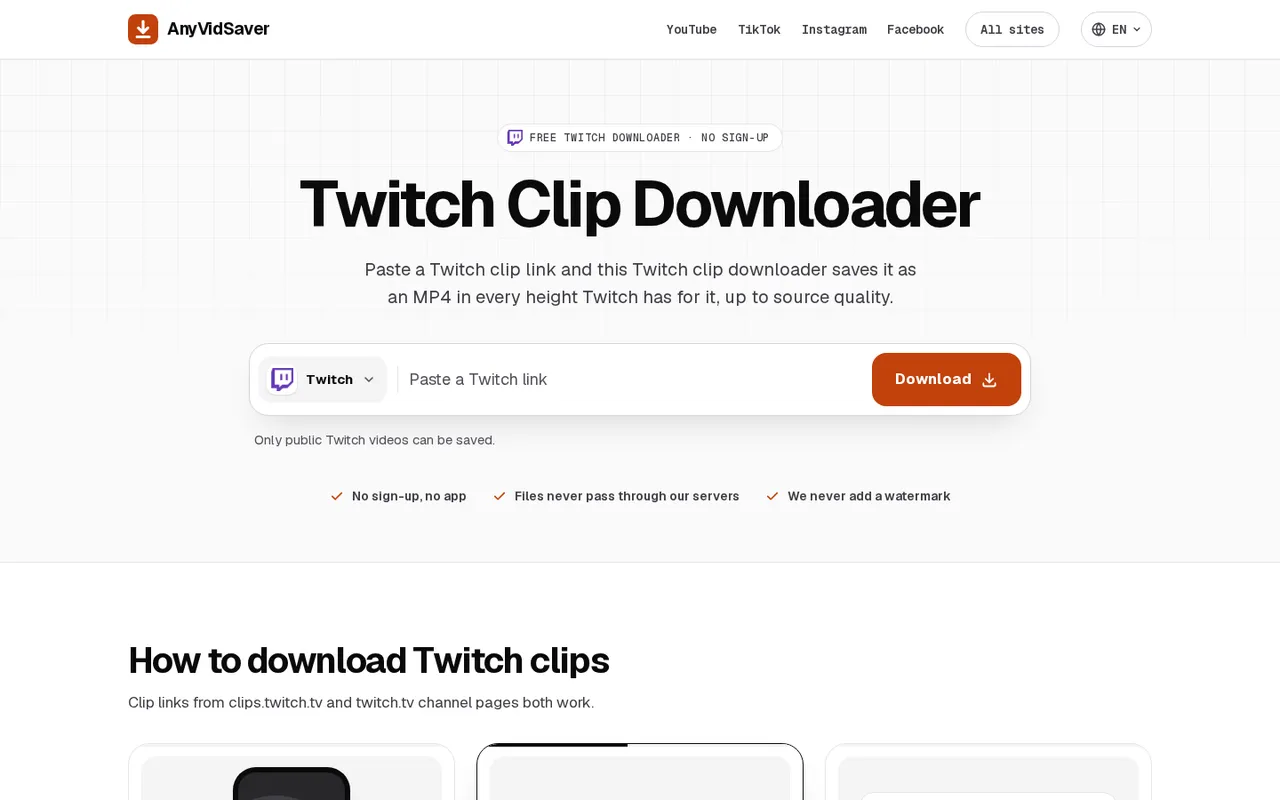
AnyVidSaver's Twitch Clip Downloader page with a link box and Download button
Desktop and web
- Open the clip, press Share and copy its link, or copy the address bar. Clip-domain links, Twitch channel-page links and clips from a channel’s Clips tab all work.
- Paste the link into the downloader and press Download.
- Pick an available quality: the highest for editing, or a smaller one for sharing.
- Press Download video to save the MP4.
The downloader offers the heights Twitch encoded for that clip, such as 1080p, 720p, 480p or 360p. Nothing is upscaled or re-compressed, so the download cannot be sharper than the highest source quality.
Windows PC
Open the file from the browser’s downloads list at the top right, or press Ctrl+J; its save location is This PC > Downloads.
Mac
Use the ↓ button in the browser toolbar to open the download, then drag it to Photos or another folder; its save location is ~/Downloads.
A stream that is still live cannot be downloaded through this flow. Create a clip first: click the clip icon on the live stream or past broadcast, select up to 60 seconds with the slider underneath the player, then add a title and click Publish. Twitch gives you a clip URL to copy.
If a download fails, check the link in a private browser window. Only public clips can be saved; private or deleted videos account for most failures. A link that does not open in that window cannot be saved through the downloader.
Download your own clips from Twitch
Desktop and web
- Open Creator Dashboard > Content > Clips.
- Choose Clips of My Channel for clips of your channel, or Clips I've Created for clips you created.
- Download the landscape or portrait version. Both appear side by side in the Clips Manager.
Landscape uses 16:9; portrait uses 9:16, giving you a vertical version without cropping the downloaded landscape file yourself.
Twitch also supports direct posting to YouTube (Shorts), TikTok, Instagram and Snapchat. For clips you made of other channels, direct posting works only when the streamer has enabled it.
For your own Highlights, Past Broadcasts and Uploads, Twitch’s on-demand video guide gives this web path: Creator Dashboard > Content dropdown menu > Video Producer > 3 Vertical Dots menu icon > Download. Allow extra time for a long download to start. Videos muted by the Audio Recognition system download muted, and Twitch offers no bulk download. Save past broadcasts before deletion: 60 days for Partners, Prime and Twitch Turbo users, 14 days for Affiliates, or 7 days for other broadcasters. If Store Past Broadcasts is off, past broadcasts are not saved, so you cannot create Highlights or Clips from them.
Download Twitch clips on iPhone and Android
Copy the clip link with Share, then use the browser flow in Download any Twitch clip in a browser, tapping instead of clicking. Saving the downloaded file differs as follows.
iPhone and iPad
- Open the downloader page in Safari and tap Download.
- Tap the ↓ icon by the address bar, then the file.
- Tap Share > Save Video to put it in Photos.
The file also sits in Files > Downloads.
Android
- Tap Download in Chrome or another browser.
- Tap the notification when it finishes. Find the file later in Gallery or the Files app.
The save location is Internal storage > Download.
When creating a clip in the Twitch mobile app, tap the video if the clip icon does not appear.
Download Kick clips
The Kick clip downloader uses the same public-link approach, with free downloads and no login. Its steps work on a phone or a computer.
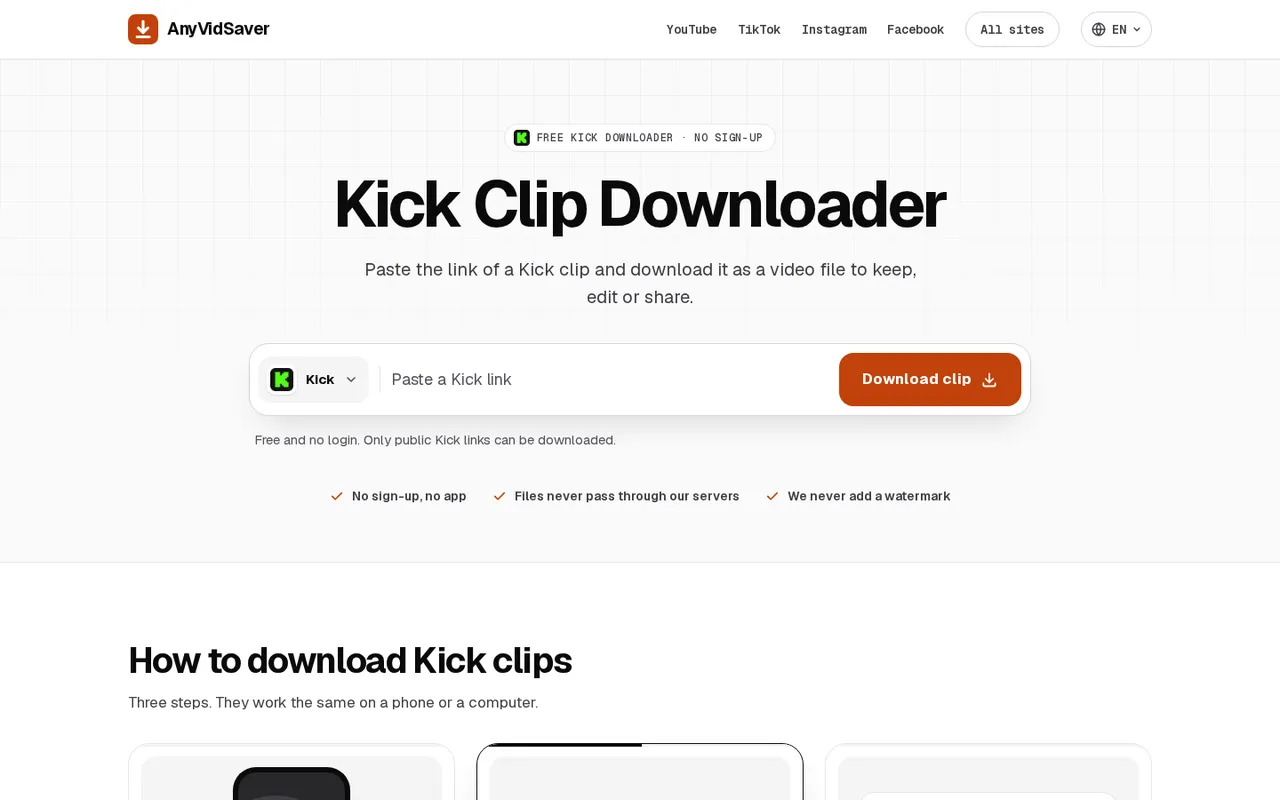
AnyVidSaver Kick Clip Downloader page with link box and Download clip button
- Open the clip on Kick and copy its link from the address bar or Share button.
- Paste the link into the downloader and press Download clip.
- Preview the clip, pick a quality and press Download to save the MP4.
Supported link styles include kick.com/channel?clip=clip_… and kick.com/channel/clips/clip_….
Kick clips last up to three minutes, and the downloader saves them in the best quality the original has. Recent clips arrive as pieces that your browser joins into one MP4 without re-encoding. Only public links can be saved; a link that will not open in a private browser window cannot be saved here.
Use the save locations in Download any Twitch clip in a browser and Download Twitch clips on iPhone and Android.
Share the clip on Discord without hitting the upload limit
Discord’s file attachment limits and upload guide lists 20 MB for non-Nitro subscribers, raised from 10 MB in August 2026; Nitro Basic offers 50 MB, and Nitro offers up to 1 GB. Discord is also experimenting with larger limits for selected users.
Paste the clip link
Paste the clip URL into chat. Discord builds link previews from webpage metadata; only the first five links in a message get previews. This shares the clip’s page without attaching the MP4.
Previews show unless the setting is turned off. On desktop, Discord’s desktop display-settings guide also places the toggle under User Settings > Display > Messages as Show embeds and link previews.
Desktop and web
- Open cogwheel in bottom-left corner > Chat tab.
- Enable Show embeds and preview website links pasted into the chat.
The mobile app
- Open profile image in bottom-right corner > cogwheel in top-right corner > Chat tab.
- Enable Show embeds and preview website links pasted into the chat.
Shrink the MP4 before uploading
If your clip exceeds 20 MB, trim or compress it. Our Discord video compressor runs in your browser: the video stays on your device, with no upload, sign-up or watermark.
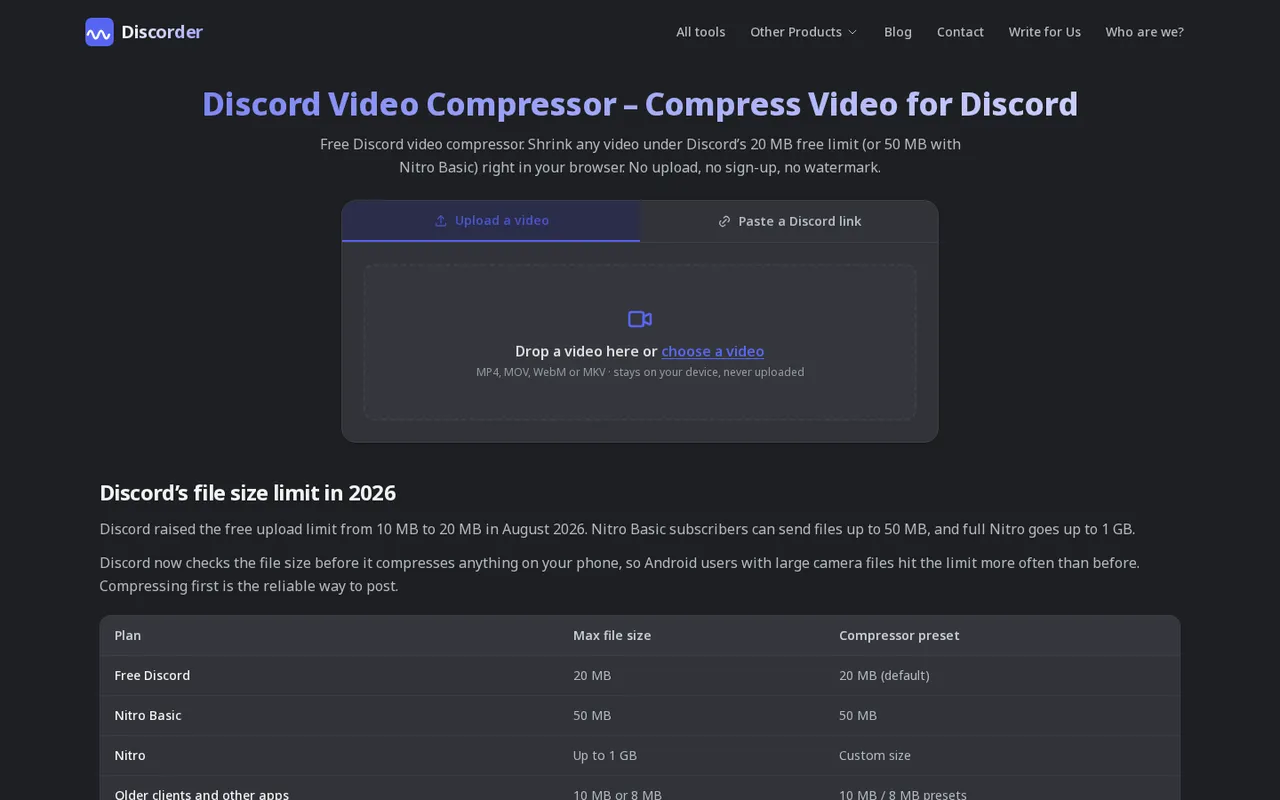
Discord Video Compressor page with upload drop zone and a file size limit table
- Select Upload a video and add your MP4, MOV, WebM or MKV.
- Pick 20 MB for free Discord, 50 MB for Nitro Basic, or a custom size. Use Trim to keep the best moment.
- Download the compressed MP4 and drag it into Discord.
File size is bitrate multiplied by length. A 20 MB budget gives a 30-second clip roughly 5 Mbps; spread across three minutes, it is under 1 Mbps. Trimming to the best 20 seconds leaves more room for full-HD detail. For phone videos, shrink to 720p in your mobile browser before posting.
Upload the MP4 on desktop and web
Discord supports MP4 with H264, HEVC/H265 or AV1 video in a text channel, a voice channel’s text chat or a group message.
- Choose plus sign in the text field > Upload a File.
- Select the MP4, then send your message.
Discord checks file size before compression on desktop and mobile, so large Android source files reach the limit more easily. On mobile, Data Saver under Video Uploads makes videos upload faster with less data; Data Saving Mode sends lower-quality images and videos over cellular.
Ask before you repost someone else's clip
Twitch lets you share clips you created of other channels when the channel owner allows it, and streamers control direct social exports. AnyVidSaver’s guidance says copyright stays with the creator: credit creators and do not re-upload or pass off someone else’s work as your own.
Discord’s copyright policy explainer says to respect others’ intellectual property and not provide access to copyrighted works without authorization. Discord users and affected individuals can report infringement by emailing copyright@discordapp.com or through Discord's request form.
Save the version you need, check its size, and choose a link preview or file upload. Discorder.tools is not affiliated with Discord Inc.

With a background in AI and a passion for clear technical communication, I enjoy breaking down complex tools and processes. Exploring new software and sharing insights is a key focus.
Run a gaming, tech, or AI site? Write for us or swap links →